Zarcula for Zed
Zarcula is a dark theme for the Zed editor inspired by JetBrains Darcula – but tuned specifically for Zed’s UI, terminal, and collaborative editing experience.
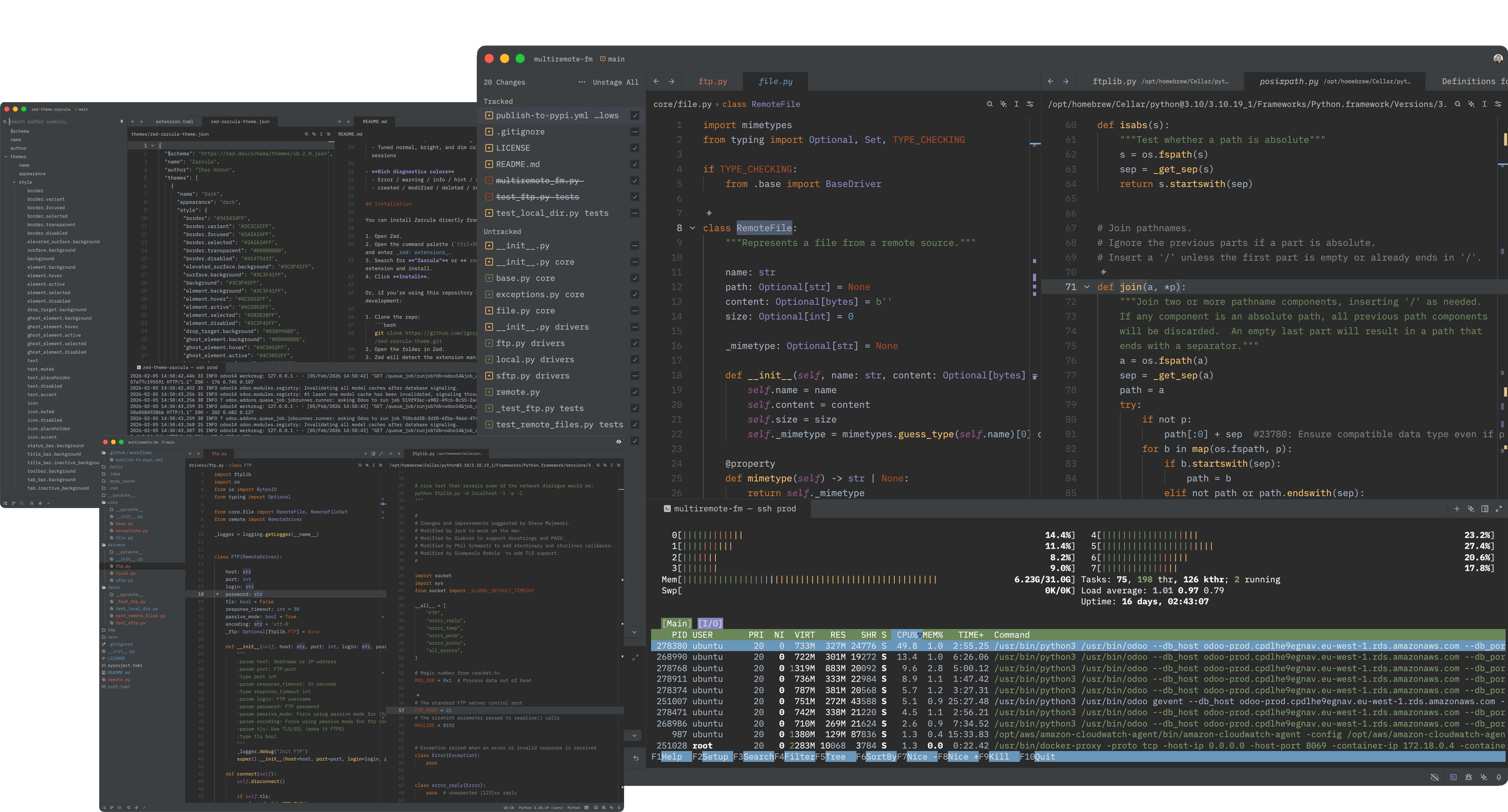
Git Panel & HTOP | Project Panel & Python | Outline Panel & Json & MD
Features
Darcula’s sophisticated cousin, custom-built for Zed.
Carefully matched backgrounds and borders for
- Editor and gutter
- Panels and toolbars
- Tabs, status bar, and title bar
Readable syntax colors
- Keywords & booleans:
#CC7832(warm orange) - Strings & labels:
#6A8759(muted green) - Numbers & numeric-like values:
#6897BB(blue) - Functions:
#FFC66D(soft yellow) - Types & selectors:
#8888C6(violet) - Comments:
#808080(neutral gray) - Doc comments:
#6A8759(green, to stand out from regular comments)
- Keywords & booleans:
Integrated terminal styling
- Dedicated ANSI palette matching the editor colors
- Tuned normal, bright, and dim colors for long shell sessions
Rich diagnostics colors
- Error / warning / info / hint / success
- created / modified / deleted / renamed
Installation
You can install Zarcula directly from within Zed:
- Open Zed.
- Open the command palette (
Ctrl+Shift+P/Cmd+Shift+P) and enter zed: extensions. - Search for "Zarcula" or
zed-zarcula-themeextension and install. - Click Install.
Or, if you’re using this repository locally during development:
- Clone the repo:
git clone https://github.com/igorgoroun/zed-zarcula-theme.git - Open the folder in Zed.
- Zed will detect the extension manifest (
extension.toml) and offer to load the theme.
Activation
Once installed:
- Open Settings → Appearance → Theme.
- Choose Zarcula – Dark from the theme list.
You can also use the command palette:
- Press
Ctrl+Shift+P/Cmd+Shift+P. - Run “Change Theme”.
- Select Zarcula (Dark).
Contributing
Feedback and contributions are welcome:
- Fork the repo.
- Make your changes to
themes/zed-zarcula-theme.json. - Open a pull request on GitHub
License
See the LICENSE file in this repository for details.