zed-highlight






"Free as in use-after."
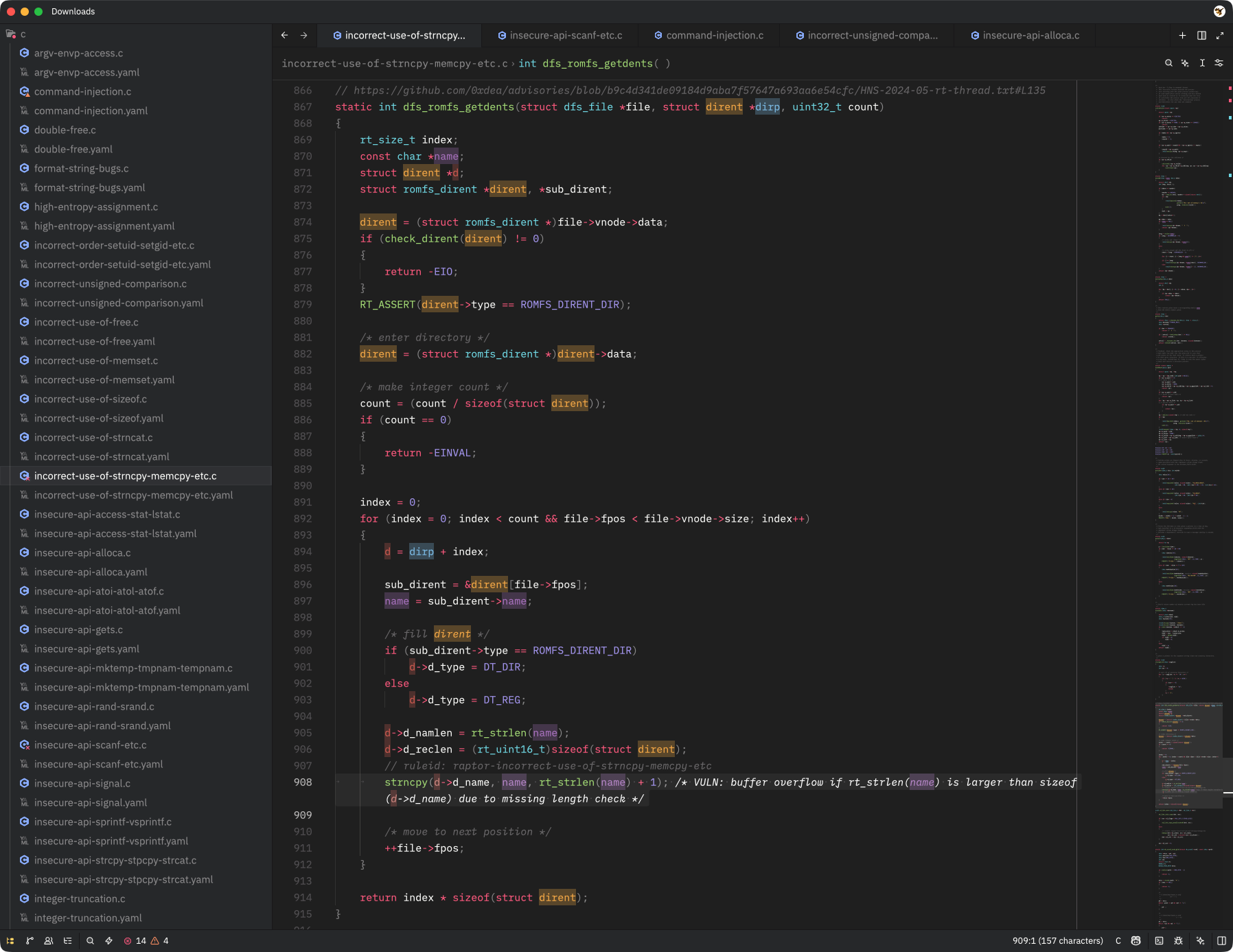
Word Highlight is a language server extension for the Zed editor, designed to provide word highlighting. It's useful for quickly identifying all occurrences of selected words in code, enhancing readability and navigation when tracing the execution flow from input sources to potential vulnerability sinks.
How it works
The extension runs a small LSP server in the background. When you toggle a word, the server scans every supported open document for occurrences and returns them as semantic tokens. Zed colors those tokens using the rules you add to settings.json.
Words are matched whole-word and case-sensitively by default. Up to 8 words can be highlighted simultaneously, each getting a distinct color. Adding a 9th word reuses the first color, and so on.
Features
The following features are currently supported by the extension and the bundled LSP server:
- Easy access to the following code actions via the
editor: toggle code actionsmenu (⌘./Ctrl+.shortcut or lightning bolt icon in the gutter):Toggle highlight- Toggle highlighting on and off for the current selection or cursor position.Clear all highlights- Remove all active highlights with a single command.
- Configurable highlight colors (via
settings.json). - Support for most languages supported by Zed (open an issue if you need support for a specific language).
- Cross-platform support for macOS, Linux, and Windows.
- Automatic installation and updates of the LSP server via the extension.
See also
- https://zed.dev/extensions
- https://marketplace.visualstudio.com/items?itemName=debugpig.highlight
- https://github.com/debugpig/vscode-extension-highlight
- https://github.com/huacnlee/color-lsp
Installing
The easiest way to install the Word Highlight extension is via Zed's extension marketplace. It will take care of installing the latest release of the bundled LSP server automatically on first use and will check for updates upon startup.
Alternatively, you can clone the repository and install both the extension and the LSP server manually. First, build the LSP server from source and install it:
git clone --depth 1 https://github.com/0xdea/zed-highlight
cd zed-highlight
cargo install --path lsp --locked
Then, in Zed, run zed: install dev extension from the command palette and select the zed-highlight directory in which you have previously cloned the repository.
Note
Zed Highlight LSP is also available on crates.io. You can install it directly via
cargo install zed-highlight-lsp --lockedif you don't want to build from source.
Configuration
Make sure syntax highlighting with semantic tokens is enabled in settings.json, with e.g.:
{
  // enable combined semantic tokens (recommended)
  "semantic_tokens": "combined"
}
or:
{
  // enable full semantic tokens
  "semantic_tokens": "full"
}
Then, configure the foreground and background colors for each of the 8 semantic token types emitted by the extension (i.e., zed-highlight-0 to zed-highlight-7) in settings.json. For dark themes, you can use the following color scheme:
{
  // word-highlight-lsp extension colors (dark themes)
  "global_lsp_settings": {
    "semantic_token_rules": [
      {
        "token_type": "zed-highlight-0",
        "foreground_color": "#F5B041",
        "background_color": "#F5B04150"
      },
      {
        "token_type": "zed-highlight-1",
        "foreground_color": "#85C1E9",
        "background_color": "#85C1E950"
      },
      {
        "token_type": "zed-highlight-2",
        "foreground_color": "#CD6155",
        "background_color": "#CD615550"
      },
      {
        "token_type": "zed-highlight-3",
        "foreground_color": "#AF7AC5",
        "background_color": "#AF7AC550"
      },
      {
        "token_type": "zed-highlight-4",
        "foreground_color": "#48C9B0",
        "background_color": "#48C9B050"
      },
      {
        "token_type": "zed-highlight-5",
        "foreground_color": "#F4D03F",
        "background_color": "#F4D03F50"
      },
      {
        "token_type": "zed-highlight-6",
        "foreground_color": "#52BE80",
        "background_color": "#52BE8050"
      },
      {
        "token_type": "zed-highlight-7",
        "foreground_color": "#FF9933",
        "background_color": "#FF993350"
      }
    ]
  }
}
The 50 suffix on background colors is an alpha value in hex (roughly 31% opacity). You can adjust the colors and opacity to your taste.
An alternative color scheme that should be more suitable for light themes is provided below:
{
  // word-highlight-lsp extension colors (light themes)
  "global_lsp_settings": {
    "semantic_token_rules": [
      {
        "token_type": "zed-highlight-0",
        "foreground_color": "#B3D9FF",
        "background_color": "#B3D9FF40"
      },
      {
        "token_type": "zed-highlight-1",
        "foreground_color": "#B3B3FF",
        "background_color": "#B3B3FF40"
      },
      {
        "token_type": "zed-highlight-2",
        "foreground_color": "#DFB9B3",
        "background_color": "#DFB9B340"
      },
      {
        "token_type": "zed-highlight-3",
        "foreground_color": "#FFB3FF",
        "background_color": "#FFB3FF40"
      },
      {
        "token_type": "zed-highlight-4",
        "foreground_color": "#93DFB3",
        "background_color": "#93DFB340"
      },
      {
        "token_type": "zed-highlight-5",
        "foreground_color": "#B1C0E0",
        "background_color": "#B1C0E040"
      },
      {
        "token_type": "zed-highlight-6",
        "foreground_color": "#DFDF80",
        "background_color": "#DFDF8040"
      },
      {
        "token_type": "zed-highlight-7",
        "foreground_color": "#C6DFB3",
        "background_color": "#C6DFB340"
      }
    ]
  }
}
See my dotfiles and Zed's documentation for further customization options.
Usage
Place the cursor on a word (or select a range of text) and open the code actions menu via editor: toggle code actions in the command palette or by pressing the default shortcut ⌘./Ctrl+. (or the lightning bolt icon in the gutter). The following actions are available depending on context:
Toggle highlight- Toggle highlighting on and off for the current selection or cursor position.Clear all highlights- Remove all active highlights with a single command.
Word boundaries follow the Unicode definition of word characters used by the regex crate (letters, digits, combining marks, and connector punctuation such as _). As a result, non-letter numbers such as ² or ½ split words: with the cursor on a²a, only a is offered. Select the text explicitly to highlight it as a whole.
Compatibility
The latest release was tested with Zed 1.14.2 (ARM64) on:
- Apple macOS Tahoe 26.5.2
- Ubuntu Linux 24.04.3 LTS
- Microsoft Windows 11 23H2
Credits
- @debugpig for their vscode-extension-highlight, which served as a major inspiration for this project.
Changelog
TODO
- Use
languages = "*"when it's made available (see this comment). - Add a minimal command-line interface for manual use of the LSP server outside of Zed.
- Add and test customizable settings (e.g.,
whole_wordandignore_caseflags). - Add highlighting based on regular expressions.
- Add a sidebar for navigation between currently highlighted words.
- Consider migrating to tower-lsp-server that is maintained upstream.