TODO Highlight for Zed
Highlights TODO, FIXME, HACK, NOTE, WARN, BUG and other keywords across all file types in Zed.
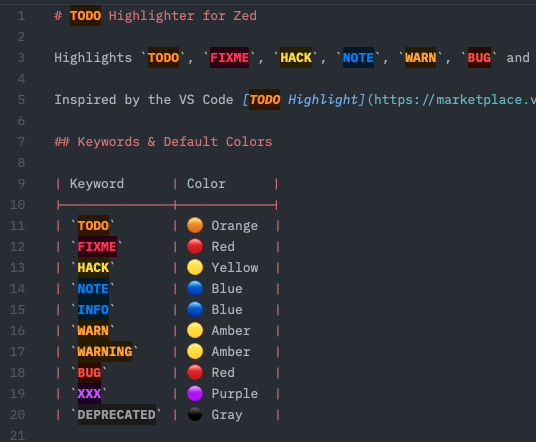
Inspired by the VS Code TODO Highlight extension.
Keywords
TODO FIXME HACK NOTE INFO WARN WARNING BUG XXX DEPRECATED
Out of the box, every keyword is highlighted using your theme's keyword style — no color configuration required. Per-keyword colors (like the palette in the screenshot above) are an optional override; see Customizing Colors.
Installation
1. Install the extension
Install from the Zed extension registry, or as a dev extension:
Build the LSP server binary and add it to your PATH:
macOS / Linux
cargo build --release -p todo-highlight-lsp
cp target/release/todo-highlight-lsp ~/.local/bin/
Windows
cargo build --release -p todo-highlight-lsp
copy target\release\todo-highlight-lsp.exe "$env:USERPROFILE\.local\bin\"
(Create
%USERPROFILE%\.local\binand add it to yourPATHif it doesn't exist.)Zed → Extensions →
Install Dev Extension→ select theextension/subdirectory
2. Enable semantic tokens
Open your global Zed settings (⌘, on macOS, Ctrl+, on Linux/Windows) and add a single line:
{
  "semantic_tokens": "combined"
}
That's all. Keywords are now highlighted with your theme's keyword style in every supported language. No color rules are required.
Why is this setting needed? Zed treats semantic-token highlighting as opt-in, and extensions cannot change editor-wide settings on your behalf. Once added, the setting applies to all projects and never needs to be touched again.
Customizing Colors
By default all keywords share your theme's keyword style. To give keywords distinct colors, add override rules to your settings.
The LSP server emits every keyword as the standard keyword token type plus a keyword-specific modifier — the keyword name in lowercase (todo, fixme, hack, note, info, warn, warning, bug, xxx, deprecated). Override rules match on those modifiers, take precedence over Zed's built-in defaults, and only affect this extension's tokens (other language servers don't use these modifiers).
Important: override rules live under
global_lsp_settings, which Zed only accepts in your globalsettings.json(opened with⌘,) — not in a project-level.zed/settings.json. Zed reports "Property global_lsp_settings is not allowed" if you place it there.
Example — a full per-keyword palette with optional dark-theme backgrounds (shown in the screenshot above):
{
  "global_lsp_settings": {
    "semantic_token_rules": [
      { "token_type": "keyword", "token_modifiers": ["todo"],       "foreground_color": "#FF8C00", "background_color": "#2B1700", "font_weight": "bold" },
      { "token_type": "keyword", "token_modifiers": ["fixme"],      "foreground_color": "#FF2D55", "background_color": "#2B0011", "font_weight": "bold" },
      { "token_type": "keyword", "token_modifiers": ["hack"],       "foreground_color": "#FFD60A", "background_color": "#272100", "font_weight": "bold" },
      { "token_type": "keyword", "token_modifiers": ["note"],       "foreground_color": "#0A84FF", "background_color": "#001B2B", "font_weight": "bold" },
      { "token_type": "keyword", "token_modifiers": ["info"],       "foreground_color": "#0A84FF", "background_color": "#001B2B", "font_weight": "bold" },
      { "token_type": "keyword", "token_modifiers": ["warn"],       "foreground_color": "#FF9F0A", "background_color": "#271B00", "font_weight": "bold" },
      { "token_type": "keyword", "token_modifiers": ["warning"],    "foreground_color": "#FF9F0A", "background_color": "#271B00", "font_weight": "bold" },
      { "token_type": "keyword", "token_modifiers": ["bug"],        "foreground_color": "#FF453A", "background_color": "#2B0A00", "font_weight": "bold" },
      { "token_type": "keyword", "token_modifiers": ["xxx"],        "foreground_color": "#BF5AF2", "background_color": "#1B0029", "font_weight": "bold" },
      { "token_type": "keyword", "token_modifiers": ["deprecated"], "foreground_color": "#98989D", "background_color": "#1A1A1A", "font_weight": "bold" }
    ]
  }
}
Customize freely: pick any subset of keywords, change any foreground_color, or drop fields you don't need.
Background color
Each rule accepts an optional background_color field. The palette above uses colors derived from each keyword's foreground hue at low lightness, tuned for dark themes:
| Keyword | Background |
|---|---|
TODO |
#2B1700 — dark orange |
FIXME |
#2B0011 — dark crimson |
HACK |
#272100 — dark yellow |
NOTE / INFO |
#001B2B — dark blue |
WARN / WARNING |
#271B00 — dark amber |
BUG |
#2B0A00 — dark red |
XXX |
#1B0029 — dark purple |
DEPRECATED |
#1A1A1A — near-black |
Light themes: swap the dark backgrounds for light tints — e.g. #FFF0D9 for TODO, #FFE5E9 for FIXME.
Omit background_color from any rule to leave the editor's default background unchanged for that keyword.
Migrating from v0.2.x
Earlier versions emitted custom token types (todoKeyword, fixmeKeyword, …) and required a semantic_token_rules block for any highlighting at all. Those token types no longer exist, so old rules silently stop matching — highlighting still works via the default keyword style, but your custom colors won't apply until you update each rule:
-  { "token_type": "todoKeyword", "foreground_color": "#FF8C00", "font_weight": "bold" }
+  { "token_type": "keyword", "token_modifiers": ["todo"], "foreground_color": "#FF8C00", "font_weight": "bold" }
If you were happy with the example palette, simply replace your old block with the one in Customizing Colors. If you never got around to configuring rules, you can now delete the requirement from your mental checklist — only "semantic_tokens": "combined" is needed.
Troubleshooting
Keywords are not highlighted after installation
- Confirm
"semantic_tokens": "combined"is in your globalsettings.json(opened with⌘,). - Confirm the LSP server is running: Zed →
View→Toggle Log→ search fortodo-highlight-lsp. - If the log shows "binary not found", the LSP binary is not on your PATH — see step 1 of the installation.
If you installed the extension without enabling semantic tokens yet, the extension will show a notification after you open two files guiding you to the required setting.
"Property global_lsp_settings is not allowed"
You placed color-override rules in a project-level .zed/settings.json. Zed only supports global_lsp_settings in your global settings file — open it with ⌘, and move the block there.
Only some keywords are highlighted
The extension uses word-boundary matching (\bKEYWORD\b), so TODOS will not match TODO. Check for extra characters attached to the keyword.
Custom colors don't apply
- Rules must be in your global settings file, not a project-level one (see above).
- After migrating from v0.2.x, rules must match on
token_modifiers—token_type: "todoKeyword"no longer matches anything (see Migrating from v0.2.x). - Earlier rules take precedence: if another rule above yours also matches (e.g. a bare
"token_type": "keyword"rule), it wins for the properties it sets.
Architecture
Zed Editor
  └── Extension (Rust → WASM)   — registers LSP server, downloads binary on install
        └── LSP Server (binary) — regex-scans buffers, emits semantic tokens
The LSP server is a lightweight Rust binary with no async runtime. It uses INCREMENTAL text sync to minimise data transfer and caches scan results per document version, so repeated token requests for unchanged files return immediately.