NeutralFlow
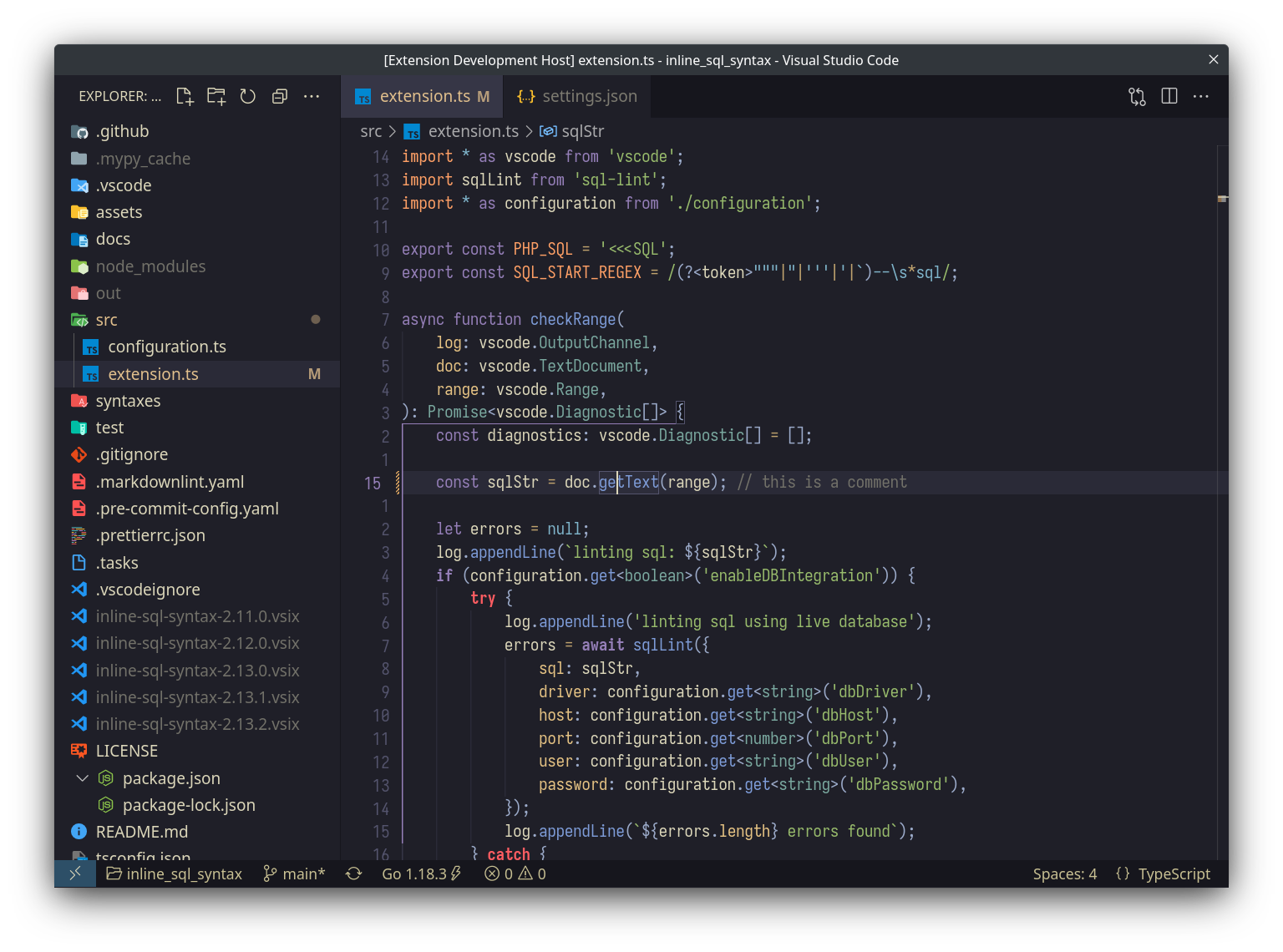
A clean, calm dark theme with neutral tones designed for focused and comfortable coding.
Available for Visual Studio Code and Zed.
Supported Editors
| Editor | How to install |
|---|---|
| Visual Studio Code | Install NeutralFlow from the Marketplace |
| Zed | Install as a dev extension from this repository (see Using NeutralFlow in Zed) |
Available Themes
NeutralFlow comes with 7 beautiful color variations, available in both VS Code and Zed. Each has a unique accent palette while maintaining the same calm, neutral base:
| Theme | Accent Color | Description |
|---|---|---|
| NeutralFlow | Purple (#957FB8) | Original theme with purple accents - balanced and professional |
| NeutralFlow Emerald | Green (#4A7C59) | Nature-inspired green tones - fresh and calming |
| NeutralFlow Sapphire | Blue (#5B7C99) | Ocean-inspired blue tones - cool and focused |
| NeutralFlow Amber | Orange (#D48C3E) | Warm sunset amber tones - energetic and warm |
| NeutralFlow Rose | Pink (#C85A6C) | Soft rose pink tones - gentle and creative |
| NeutralFlow Violet | Violet (#8B6FA3) | Deep violet purple tones - creative and sophisticated |
| NeutralFlow One Dark Pro | Multi-color | Inspired by One Dark Pro - vibrant and popular |
How to Switch Themes
The shortcut is the same in VS Code and Zed:
- Press
Ctrl+K Ctrl+T(orCmd+K Cmd+Ton macOS) - Select your preferred NeutralFlow variant from the theme picker
- Enjoy your new color scheme!
Using NeutralFlow in Zed
All 7 variants are also available for Zed. To install them from this repository:
- Clone the repository.
- In Zed, open the command palette, run
zed: install dev extension, and select thezed/folder. - Press
Ctrl+K Ctrl+T(orCmd+K Cmd+Ton macOS) and pick a NeutralFlow variant.
The Zed themes are generated from the VS Code themes in themes/. After changing a VS Code theme, regenerate them with:
npm run build:zedPublishing to the Zed extension registry
Zed publishes extensions from zed-industries/extensions, which includes this repository as a git submodule and builds its zed/ folder. npm run build:zed can prepare that repository for you:
Fork
zed-industries/extensionsand clone your fork.Copy
.env.exampleto.envand setZED_EXTENSIONS_REPO_PATHto your clone:ZED_EXTENSIONS_REPO_PATH=D:\path\to\extensionsRegenerate the themes, then commit and push this repository. The registry builds from the pushed commit, not your local files.
Run
npm run build:zedagain. It points theextensions/neutralflow-themesubmodule at the latest pushed commit and writes theneutralflow-themeentry inextensions.tomlwith the current version. Both changes are staged. If the pushed commit doesn't match your localzed/folder, it warns you.In your clone, commit on a new branch, push it, and open a pull request to
zed-industries/extensions. See Zed's publishing guide.
Semantic tokens (VS Code)
Theme supports and recommends enabling semantic tokens.
TypeScript
Enabled by default.
Go
{
  "gopls.ui.semanticTokens": true
}
rust-analyzer
{
  "rust-analyzer.highlighting.strings": true
}
C#
{
  "csharp.semanticHighlighting.enabled": true
}
Customization (VS Code)
Comments
If you prefer comments to stand out in your code - this looks nice:
{
  "editor.tokenColorCustomizations": {
    "[NeutralFlow]": {
      "comments": {
        "foreground": "#FF9E3B"
      }
    }
  }
}
Paste it in your settings.json.