Haxe language support for Zed
Usage
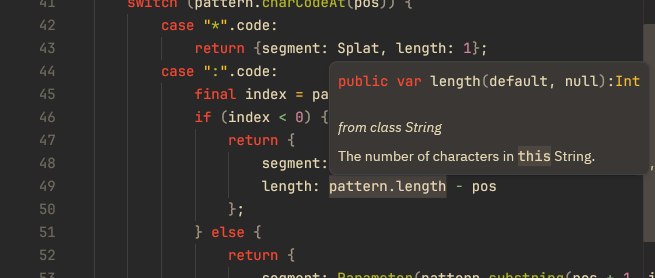
The syntax highlighting should appear immediately.
The backing language server should be downloaded automatically in the background.
This extension detects all .hxml files in the workspace root,
and then tries to choose the best one as configuration.
This decision might be wrong!
To explicitly use a specific .hxml file,
create a .zed/settings.json file in your project root:
{
  "lsp": {
    "haxe-language-server": {
      "initialization_options": {
        "displayArguments": ["DevEnv.hxml"]
      }
    }
  }
}
Additional settings you may want to pass to the language server: (non-exhaustive)
{
  "lsp": {
    "haxe-language-server": {
      "initialization_options": {
        "displayServerConfig": {
          "path": "/your/custom/haxe/here"
        }
      },
      "settings": {
        "haxe": {
          "buildCompletionCache": true,
          "displayHost": "127.0.0.1",
          "displayPort": 6001
        }
      }
    }
  }
}
Usage (Lime/OpenFL/HaxeFlixel)
The Haxe language server does not natively understand Lime projects,
supporting .hxml files only.
However, Lime lets you easily generate them.
Assuming that
- you have a
Project.xmlfile in your workspace root, and - you're targetting
html5,
you can run in your favorite shell:
lime build html5
lime display html5 > html5.hxml
This creates a html5.hxml file telling Haxe which libraries to include
and what platform to target.
See the instructions above on how to tell Zed to use this file.
Usage (other)
Many other Haxe toolchains can create .hxml files, including:
nme prepare html5ceramic clay hxml web > web.hxmlInstall nightly
To use dev Zed extensions, you will need to have Rust compiler installed.
You will also need to git clone this repository.
[!TIP]
If you're reading this with a web browser, you might also click the green< > Codebutton at the top of the page and chooseDownload ZIP.
In the Extensions panel (Ctrl+Shift+X), click Install Dev Extension in the top right corner.
Choose the location of the downloaded directory.
[!IMPORTANT]
This process might take a few minutes.
If this is your first time installing dev extensions, Zed may need to download its WASM toolchain (roughly 500MiB).
If you're not sure if the installation process is still ongoing, consult the editor logs atCtrl+Shift+P>zed: open log.